> ## Documentation Index
> Fetch the complete documentation index at: https://docs.databar.ai/llms.txt
> Use this file to discover all available pages before exploring further.
# MCP Server
> Connect AI assistants like Claude to Databar's enrichment API
The Databar MCP Server implements the [Model Context Protocol](https://modelcontextprotocol.io) (MCP), allowing AI assistants like Claude, Cursor, Codex, Gemini CLI, and others to interact with Databar's API using natural language.
Instead of writing API calls manually, you can say *"find the email for John Smith at Google"* and your AI assistant will automatically discover the right enrichment, run it, and return the results.
**Use the [hosted MCP server](https://mcp.databar.ai/mcp)** (`https://mcp.databar.ai/mcp`). We ship new tools, fixes, and API alignment there first, so your client always talks to the current implementation without installing or upgrading anything locally.
## Quick start
The MCP server URL for all clients:
```
https://mcp.databar.ai/mcp
```
The recommended way to connect Claude is through the built-in Connectors UI. This uses OAuth so you never need to copy an API key.
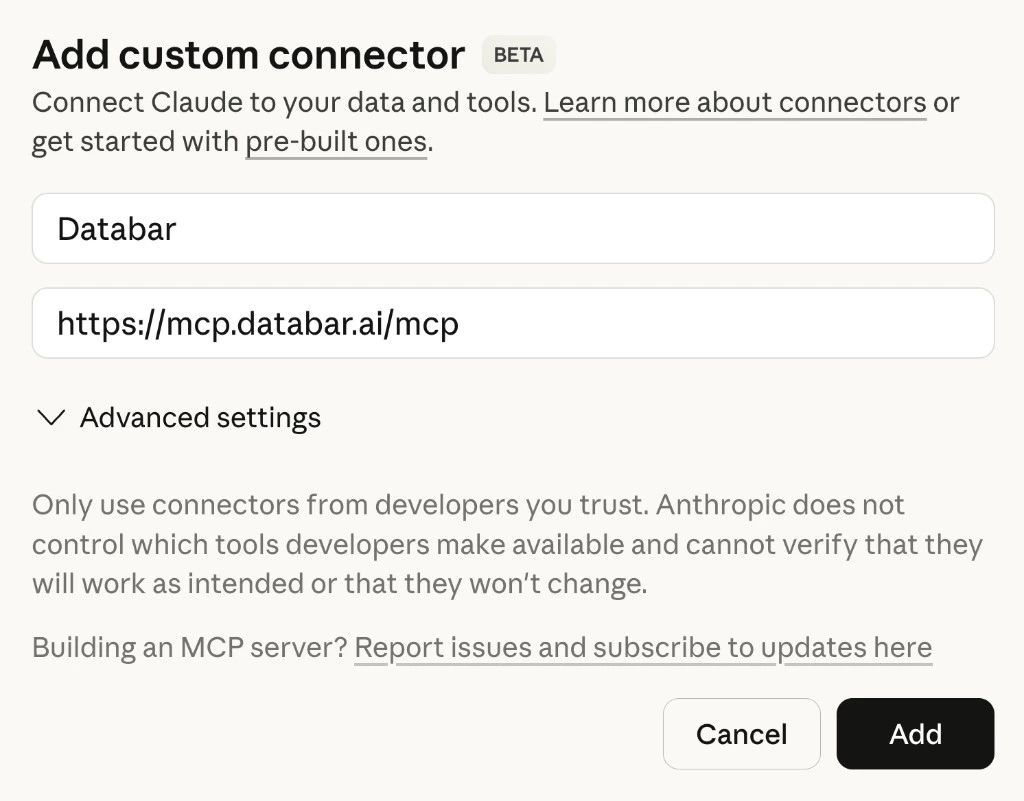
Open Claude (web or desktop) and go to **Settings > Connectors**. Scroll to the bottom and click **Add custom connector**.
* **Name:** `Databar`
* **Remote MCP Server URL:** `https://mcp.databar.ai/mcp`
* Leave **Advanced settings** blank.
* Click **Add**.
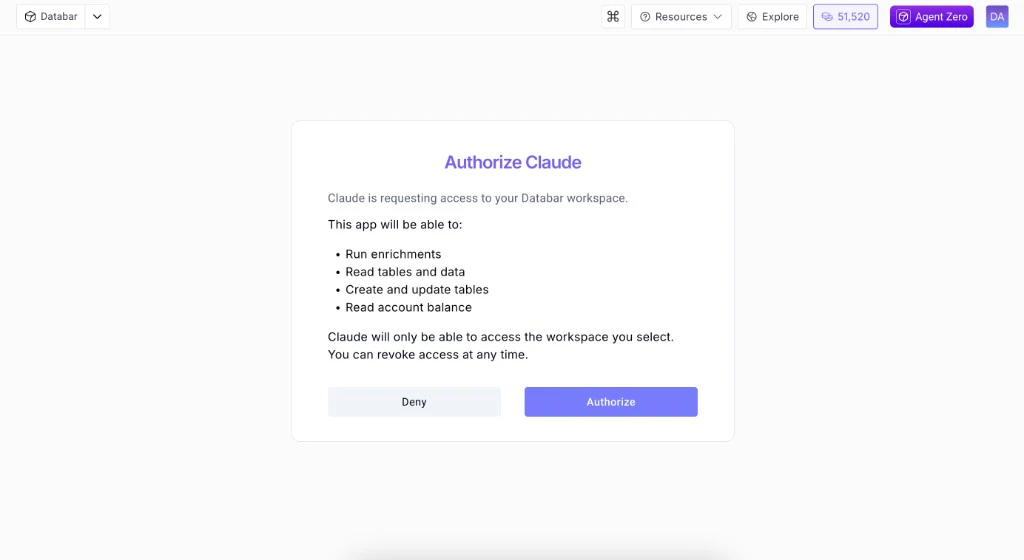
 Claude will redirect you to Databar to authenticate. Click **Authorize** to grant access to your workspace, then you will be redirected back to Claude.
 Ask Claude: *"What can the Databar MCP do?"*
If you prefer to authenticate with an API key instead of OAuth, add this to your Claude Desktop config (`~/Library/Application Support/Claude/claude_desktop_config.json` on macOS):
```json theme={null}
{
"mcpServers": {
"databar": {
"type": "http",
"url": "https://mcp.databar.ai/mcp",
"headers": {
"Authorization": "Bearer your-api-key-here"
}
}
}
}
```
Restart Claude after saving.
Open `.cursor/mcp.json` in your project (or `~/.cursor/mcp.json` globally) and add:
```json theme={null}
{
"mcpServers": {
"databar": {
"url": "https://mcp.databar.ai/mcp",
"headers": {
"Authorization": "Bearer your-api-key-here"
}
}
}
}
```
To find your API key, log in to your [Databar workspace](https://databar.ai) and navigate to **Integrations**.
Restart Cursor, then try: *"What can the Databar MCP do?"*
The hosted server supports both **Streamable HTTP** (`POST/GET/DELETE /mcp`) for modern clients and **Legacy SSE** (`GET /sse`) for older clients.
The [`databar-mcp-server`](https://www.npmjs.com/package/databar-mcp-server) **npm package often lags behind the hosted server**. Prefer **Hosted (recommended)** unless you need a **stdio**-based setup (some clients only support spawning a local process), a **custom** `DATABAR_BASE_URL`, or **environment tuning** (see [Configuration](/mcp-configuration)).
**npm / npx**
```bash theme={null}
npm install -g databar-mcp-server
```
Or:
```bash theme={null}
npx databar-mcp-server
```
Example **Claude Desktop** config (`~/Library/Application Support/Claude/claude_desktop_config.json` on macOS):
```json theme={null}
{
"mcpServers": {
"databar": {
"command": "npx",
"args": ["-y", "databar-mcp-server"],
"env": {
"DATABAR_API_KEY": "your-api-key-here"
}
}
}
}
```
**From source** (contributors or pinning a specific commit):
```bash theme={null}
git clone https://github.com/databar-ai/databar-mcp-server.git
cd databar-mcp-server
npm install && npm run build
```
```json theme={null}
{
"mcpServers": {
"databar": {
"command": "node",
"args": ["/path/to/databar-mcp-server/dist/index.js"],
"env": {
"DATABAR_API_KEY": "your-api-key-here"
}
}
}
}
```
## What you can do
The hosted server exposes a large set of tools aligned with the public Databar REST API. The list below reflects the current surface area (tool names and behavior may expand as we deploy updates to the hosted endpoint):
Search, inspect, run enrichments — single or bulk. Remote param choices and pagination-aware runs.
Search and run headless waterfalls; add table waterfalls and run them with enrichments.
Create, rename, or delete tables; add, rename, or delete columns; configure enrichments and exporters on a table.
Insert, patch, upsert, delete, and filter rows; create and manage folders; move tables between folders.
Search exporters, inspect details, attach to tables, list configured exporters, and trigger runs.
Check credit balance and spending-related guardrails (safe mode, per-request cost caps).
Full list of all MCP tools with descriptions.
Environment variables, safe mode, caching, and task expiry.
## Example prompts
Here are some things you can ask your AI assistant once the MCP server is connected:
* *"Get me David Abaev's LinkedIn profile"*
* *"Verify the email [david@databar.ai](mailto:david@databar.ai)"*
* *"Find the email for John Smith at Google using a waterfall"*
* *"Enrich these 10 domains with company data"*
* *"List my tables and show the columns for the first one"*
* *"Create a table called Leads with columns name, email, company and add 5 empty rows"*
* *"Get rows from my Leads table where company contains 'tech'"*
* *"How many credits do I have left?"*
## Links
Recommended — always up to date
Source, issues, and contributions
Local / stdio installs only — may lag hosted
Ask Claude: *"What can the Databar MCP do?"*
If you prefer to authenticate with an API key instead of OAuth, add this to your Claude Desktop config (`~/Library/Application Support/Claude/claude_desktop_config.json` on macOS):
```json theme={null}
{
"mcpServers": {
"databar": {
"type": "http",
"url": "https://mcp.databar.ai/mcp",
"headers": {
"Authorization": "Bearer your-api-key-here"
}
}
}
}
```
Restart Claude after saving.
Open `.cursor/mcp.json` in your project (or `~/.cursor/mcp.json` globally) and add:
```json theme={null}
{
"mcpServers": {
"databar": {
"url": "https://mcp.databar.ai/mcp",
"headers": {
"Authorization": "Bearer your-api-key-here"
}
}
}
}
```
To find your API key, log in to your [Databar workspace](https://databar.ai) and navigate to **Integrations**.
Restart Cursor, then try: *"What can the Databar MCP do?"*
The hosted server supports both **Streamable HTTP** (`POST/GET/DELETE /mcp`) for modern clients and **Legacy SSE** (`GET /sse`) for older clients.
The [`databar-mcp-server`](https://www.npmjs.com/package/databar-mcp-server) **npm package often lags behind the hosted server**. Prefer **Hosted (recommended)** unless you need a **stdio**-based setup (some clients only support spawning a local process), a **custom** `DATABAR_BASE_URL`, or **environment tuning** (see [Configuration](/mcp-configuration)).
**npm / npx**
```bash theme={null}
npm install -g databar-mcp-server
```
Or:
```bash theme={null}
npx databar-mcp-server
```
Example **Claude Desktop** config (`~/Library/Application Support/Claude/claude_desktop_config.json` on macOS):
```json theme={null}
{
"mcpServers": {
"databar": {
"command": "npx",
"args": ["-y", "databar-mcp-server"],
"env": {
"DATABAR_API_KEY": "your-api-key-here"
}
}
}
}
```
**From source** (contributors or pinning a specific commit):
```bash theme={null}
git clone https://github.com/databar-ai/databar-mcp-server.git
cd databar-mcp-server
npm install && npm run build
```
```json theme={null}
{
"mcpServers": {
"databar": {
"command": "node",
"args": ["/path/to/databar-mcp-server/dist/index.js"],
"env": {
"DATABAR_API_KEY": "your-api-key-here"
}
}
}
}
```
## What you can do
The hosted server exposes a large set of tools aligned with the public Databar REST API. The list below reflects the current surface area (tool names and behavior may expand as we deploy updates to the hosted endpoint):
Search, inspect, run enrichments — single or bulk. Remote param choices and pagination-aware runs.
Search and run headless waterfalls; add table waterfalls and run them with enrichments.
Create, rename, or delete tables; add, rename, or delete columns; configure enrichments and exporters on a table.
Insert, patch, upsert, delete, and filter rows; create and manage folders; move tables between folders.
Search exporters, inspect details, attach to tables, list configured exporters, and trigger runs.
Check credit balance and spending-related guardrails (safe mode, per-request cost caps).
Full list of all MCP tools with descriptions.
Environment variables, safe mode, caching, and task expiry.
## Example prompts
Here are some things you can ask your AI assistant once the MCP server is connected:
* *"Get me David Abaev's LinkedIn profile"*
* *"Verify the email [david@databar.ai](mailto:david@databar.ai)"*
* *"Find the email for John Smith at Google using a waterfall"*
* *"Enrich these 10 domains with company data"*
* *"List my tables and show the columns for the first one"*
* *"Create a table called Leads with columns name, email, company and add 5 empty rows"*
* *"Get rows from my Leads table where company contains 'tech'"*
* *"How many credits do I have left?"*
## Links
Recommended — always up to date
Source, issues, and contributions
Local / stdio installs only — may lag hosted