> ## Documentation Index
> Fetch the complete documentation index at: https://docs.databar.ai/llms.txt
> Use this file to discover all available pages before exploring further.
# AI prompts
> Generate and reuse AI prompt templates across your workspace.
AI prompts let you run custom instructions against your table data, either as standalone enrichments or as the driving logic behind the [AI Researcher](/product-guide/ai-researcher). Databar provides tools to write prompts manually, generate them automatically, and save them as reusable templates for your entire workspace.
## AI Prompt enrichments
An AI Prompt enrichment runs a custom prompt on every row in your table. Reference column values using the `{` syntax so the prompt adapts to each row's data.
**Example:** You have a table of company names and descriptions. Add an AI Prompt enrichment with the instruction:
```
Classify {Company Description} into one of: SaaS, Marketplace, Hardware, Services.
```
For each row, the AI reads the description and writes the classification into a new column.
Click **Enrich** in the table toolbar and search for **AI Prompt**.
Enter your instruction in the prompt editor. Use `{` to insert column references wherever you need row-specific data.
Select which response fields to add to your table.
Click **Run** to process rows. Start with a single row to validate the output.
## AI Prompt Generator
Not sure how to phrase your prompt? Describe what you want in plain English and Databar will generate a well-structured prompt for you. The generator works for both AI Prompt enrichments and [AI Researcher](/product-guide/ai-researcher) agents.
In the prompt editor, click **Generate prompt**.
Write a short description of what you want the AI to do. For example, "Summarize each company's value proposition in one sentence."
The generator produces a prompt with proper structure and column references. Edit it further if needed, then apply it to your enrichment.
The prompt generator is especially helpful when you need structured output formats (lists, JSON, specific fields). It handles the formatting instructions for you.
## AI Prompt Templates
Save any prompt as a **workspace-wide template** so you and your team can reuse it across tables without rewriting it each time. Templates are ideal for prompts you run regularly: lead qualification, content classification, data extraction patterns, and more.
### Saving a template
After writing or generating a prompt, click **Save as template**, give it a name, and it becomes available across your entire workspace.
### Using a template
When setting up an AI Prompt enrichment or AI Researcher, click **Templates** to browse your saved prompts. Select one, and the prompt editor is pre-filled with the template content. Adjust column references as needed for the current table.
## Required vs. optional column references
When your prompt includes column references, each reference can be toggled between **required** and **optional**:
| Setting | Behavior |
| ------------ | ---------------------------------------------------------------------------------------------------- |
| **Required** | If the referenced column is empty for a row, the enrichment skips that row. No credits are consumed. |
| **Optional** | The enrichment runs even if the value is empty. The AI receives a blank value for that reference. |
Use the toggle next to each column reference in the prompt editor to set its requirement level.
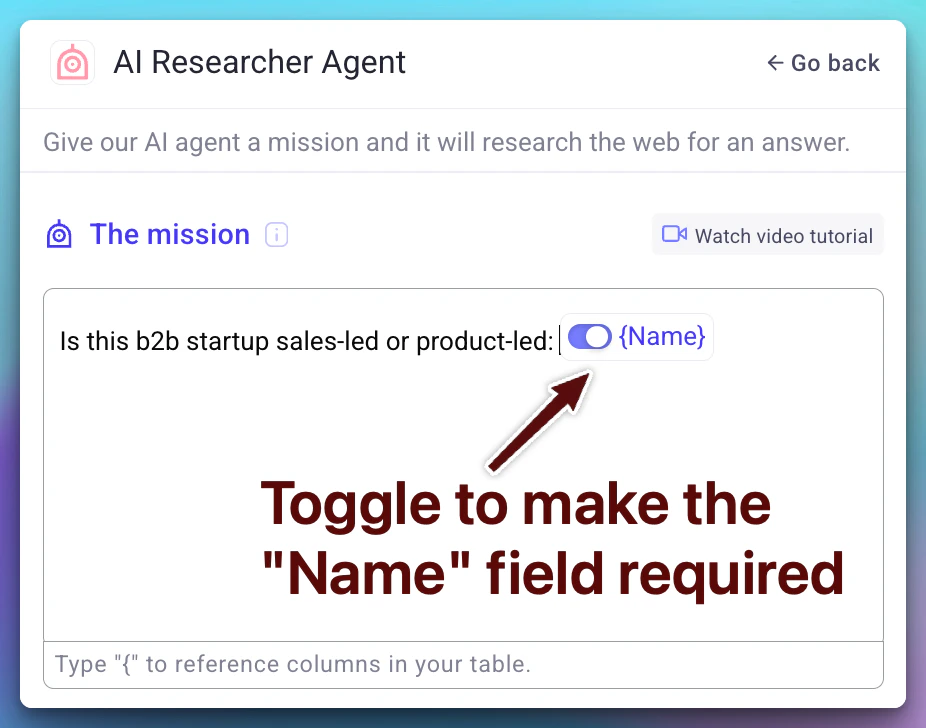 Leaving all references as optional may cause the AI to produce low-quality or irrelevant outputs when key data is missing. Mark the columns that are essential to your prompt as required.
## Next steps
Use AI agents to visit websites and extract structured data.
Learn how to add and manage enrichments on your tables.
Understand how AI prompt runs are billed.
Leaving all references as optional may cause the AI to produce low-quality or irrelevant outputs when key data is missing. Mark the columns that are essential to your prompt as required.
## Next steps
Use AI agents to visit websites and extract structured data.
Learn how to add and manage enrichments on your tables.
Understand how AI prompt runs are billed.