> ## Documentation Index
> Fetch the complete documentation index at: https://docs.databar.ai/llms.txt
> Use this file to discover all available pages before exploring further.
# AI Researcher
> Use AI agents to research and enrich your data from across the web.
The AI Researcher is an AI-powered enrichment that can visit websites, extract information, and return structured data based on your prompt. Give it a list of URLs from your table and a natural-language instruction, and it will browse each site, pull out the data you asked for, and write the results back into your table.
## How it works
The AI Researcher takes two inputs:
1. **A prompt**: a natural-language description of what you want to extract (e.g., "Find the pricing model and list each tier").
2. **A column of URLs**: the websites the agent should visit.
For each row, the agent opens the linked page, reads its content, and returns a structured response based on your prompt. Unlike single-page scrapers, the AI Researcher can follow internal links and synthesize information across multiple pages on the same site.
## Example use cases
| Input column | Prompt | Output |
| ---------------------- | --------------------------------------- | ---------------------------------------------------------- |
| Company websites | "Get their pricing model" | Pricing tiers, free-trial availability, enterprise options |
| LinkedIn company pages | "Find the CEO" | CEO name, role, and profile link |
| Startup websites | "Check if they recently raised funding" | Yes/no flag with round size, date, and investors |
| Product pages | "Summarize the key features" | Bulleted feature list per product |
## Setting up an AI Researcher enrichment
Click **Enrich** in the table toolbar, then search for **AI Researcher** in the enrichment catalog or click the **AI Researcher** button directly.
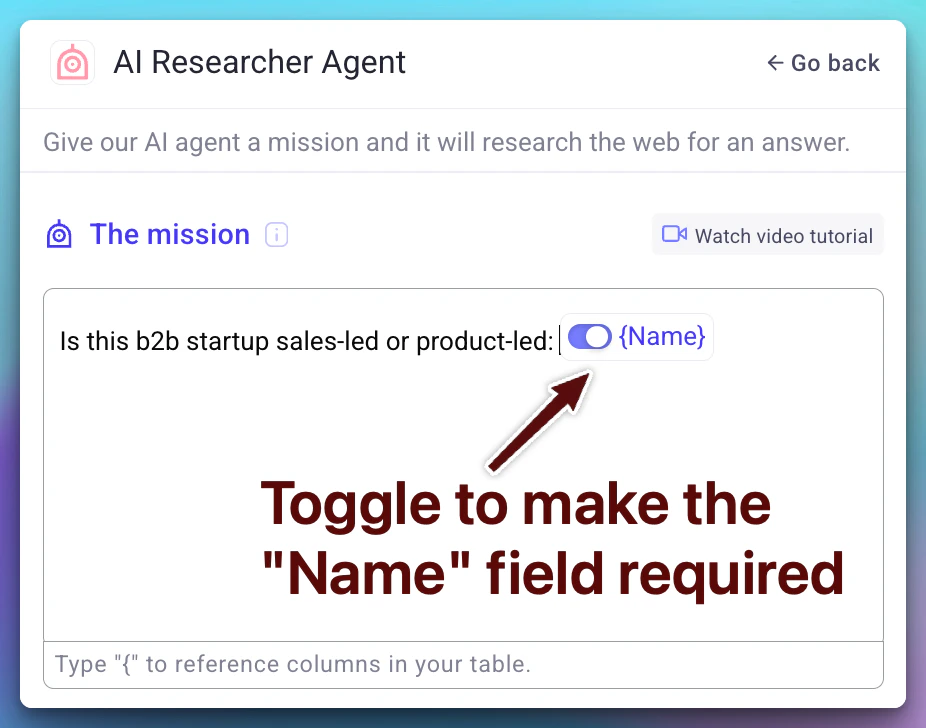
Describe what you want the agent to extract. Be specific. The clearer the prompt, the better the output. You can reference column values using the `{` syntax to make prompts dynamic per row.
Choose which response fields to add as columns in your table. You can optionally remove the **result** and **reasoning** fields if you only need the extracted data.
Hit **Run** to process your rows. Start with a single row to verify the output before running the full table.
## Customizable outputs
By default, the AI Researcher returns a **result** field and a **reasoning** field that explains how the agent arrived at its answer. Both fields are now fully optional. Remove either one during setup if you only need the raw extracted data.
## Required column references
When your prompt references columns with the `{` syntax, you can mark each reference as **required** or **optional**. If a required column value is empty for a given row, the enrichment skips that row entirely. This prevents unnecessary executions and avoids sending incomplete inputs to the AI model.
Marking references as required is especially useful when running the AI Researcher on large tables where some rows may have missing URLs or context fields.
## AI models
Databar uses the latest AI models to power the AI Researcher, ensuring high-quality extraction and reliable structured outputs. Model updates are applied automatically. No configuration needed on your end.
## Tips for better results
* **Be specific in your prompt.** Instead of "Get info about the company," try "Extract the founding year, headquarters city, and number of employees."
* **Test on a single row first.** Verify the output format before committing to a full run.
* **Use the AI Prompt Generator.** Describe what you want in plain English and let Databar generate a well-structured prompt for you. See [AI prompts](/product-guide/ai-prompts).
* **Combine with other enrichments.** Use the AI Researcher to extract URLs or identifiers, then chain additional enrichments for deeper data.
## FAQ
No, AI Researcher currently runs on Databar's managed AI infrastructure. You cannot bring your own API key. However, AI Researcher is priced very competitively, so the cost per run is kept low.
Yes. You can choose which response fields to include as columns during setup. The default **result** and **reasoning** fields are both optional, so you can remove either one if you only need the raw extracted data. You can also shape the output format through your prompt (e.g., asking for JSON, bullet points, or specific fields).
## Next steps
Generate, save, and reuse prompt templates across your workspace.
Learn how enrichments work and how to manage them.
Understand how tables, columns, and rows fit together.
See how AI Researcher runs are billed.