> ## Documentation Index
> Fetch the complete documentation index at: https://docs.databar.ai/llms.txt
> Use this file to discover all available pages before exploring further.
# Authorization & API keys
> How authentication works for data providers on Databar.
Every data provider on Databar uses one of four authorization methods. The method determines whether you need to supply your own API key, whether Databar handles authentication for you, or whether no authentication is needed at all.
## No authorization required (No Auth)
Some providers offer publicly accessible endpoints that don't require authentication.
* No API key is needed. Just configure the enrichment and run it.
* These enrichments display a **"No API key required"** badge.
* Each request consumes **0 credits** and **1 action**.
## Authorization required (API key)
For providers that require authentication, you supply your own API key from the provider's website.
Visit the data provider's website and generate or copy your API key from their developer dashboard. When you add a key in Databar, we usually provide instructions on how to find and generate the key for that specific provider.
Click the key icon on the enrichment card, then click **Authorize**. Paste your API key into the field and save.
Once you add a key to a data source, it becomes available across all endpoints from that provider. You don't need to re-enter it for each enrichment.
Each request made with your own API key consumes **0 credits** and **1 action**.
To remove or update a key, go to the **Manage Integrations** page in your workspace settings.
Once you authorize an API (whether via API key, OAuth, or the API Network), that provider becomes available across all of Databar, including the [REST API](/api-reference/introduction), [Python SDK](/python-sdk), [CLI](/cli), and [MCP Server](/mcp-server).
API keys you add to Databar are completely confidential. They are encrypted at rest and never accessed, viewed, or used by the Databar team.
## Authorization via Databar (API Network)
Databar partners with **100+ data providers** to offer keyless access through the API Network. You don't need to sign up with each provider or manage any API keys. Just click **Run** and Databar handles authentication on your behalf.
* No setup needed for supported providers.
* Each request consumes **API Network credits** based on the provider's per-row cost.
* Some providers are only available on paid plans.
Even for providers available through the API Network, you can add your own API key if you prefer to use your own quota or rate limits. Your key takes priority over the API Network connection when both are configured.
## OAuth
Integrations like HubSpot, Salesforce, and Pipedrive use OAuth for authentication. Instead of pasting an API key, you authenticate directly on the provider's website.
Click the **Authorize on \[Provider]** button on the enrichment or exporter card.
You'll be redirected to the provider's login page. Sign in and grant Databar the requested permissions.
After authorizing, you're redirected back to Databar. The connection is now active and ready to use.
Each request made through an OAuth connection consumes **0 credits** and **1 action**.
Databar currently supports one OAuth account per API integration. If you need to switch accounts, disconnect the current one from the Integrations page and re-authorize with a different account.
## Authorization at a glance
| Method | API key needed? | Credit cost | Action cost |
| ------------ | -------------------------- | ----------------- | ----------- |
| No Auth | No | 0 | 1 |
| Your API key | Yes (from provider) | 0 | 1 |
| API Network | No | Per-provider rate | 0 |
| OAuth | No (authorize via browser) | 0 | 1 |
## Setting a default API key
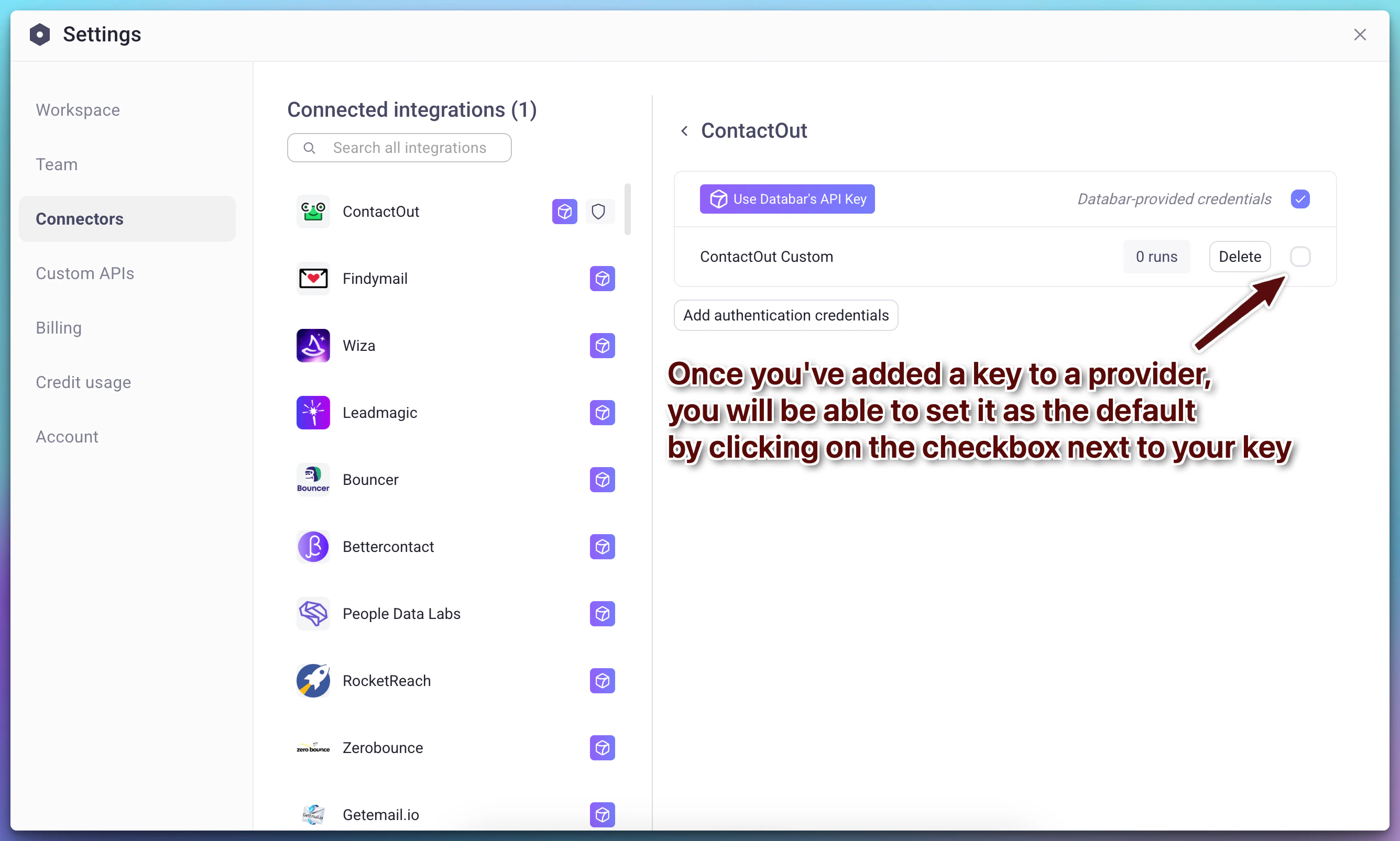
If you have multiple API keys for the same provider (for example, a personal key and a team key), you can set one as the default. The default key is used automatically whenever you run an enrichment with that provider.
Click the arrow next to your workspace name and select **Manage Integrations**.
Find and click on the provider you want to configure.
Click **Add authentication credentials** and enter your API key.
Click the checkbox next to your key to set it as the default. When enabled, this key will be used for all requests to that provider.
 ## Security
All API keys stored on Databar are encrypted and treated as confidential. The Databar team never accesses, views, or uses your keys. You can delete any stored key at any time from the **My Connections / Integrations** page.
If you have questions about data security, contact [info@databar.ai](mailto:info@databar.ai).
## Next steps
Add your own REST APIs with custom authentication.
Understand how credits and actions are consumed.
Learn how to enrich your tables with third-party data.
## Security
All API keys stored on Databar are encrypted and treated as confidential. The Databar team never accesses, views, or uses your keys. You can delete any stored key at any time from the **My Connections / Integrations** page.
If you have questions about data security, contact [info@databar.ai](mailto:info@databar.ai).
## Next steps
Add your own REST APIs with custom authentication.
Understand how credits and actions are consumed.
Learn how to enrich your tables with third-party data.