> ## Documentation Index
> Fetch the complete documentation index at: https://docs.databar.ai/llms.txt
> Use this file to discover all available pages before exploring further.
# Debug requests
> Understand enrichment statuses and use data logs to troubleshoot errors.
Databar gives you two layers of visibility into what happens when enrichments run: cell-level status indicators directly in your table, and detailed data logs for deeper investigation.
## Cell-level enrichment statuses
Each cell populated by an enrichment displays a status indicator showing what happened during processing. This is the fastest way to spot issues at a glance.
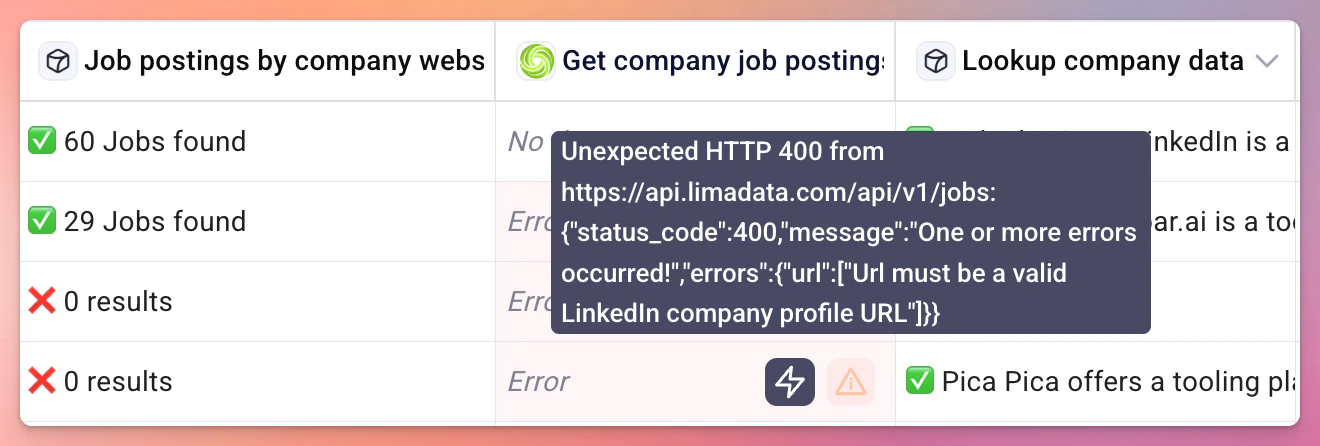 Data was returned and written to the cell. No action needed.
The provider was reached successfully, but returned no matching result for the given input. This is not an error. The provider simply does not have information for that particular query. Try a different provider or verify your input values.
Something went wrong during the request. Hover over the triangle icon in the cell to see a tooltip with the error message and status code. Check the [data logs](#accessing-data-logs) for full details.
The enrichment is still running for this row. Wait for processing to complete.
The row did not satisfy the [run conditions](/product-guide/run-conditions) configured for this enrichment. The enrichment was skipped and no credits were consumed. Review your run condition expression if you expected this row to be processed.
One or more required input columns are empty for this row. The enrichment cannot run without the necessary input values. Fill in the missing data and re-run.
## Accessing data logs
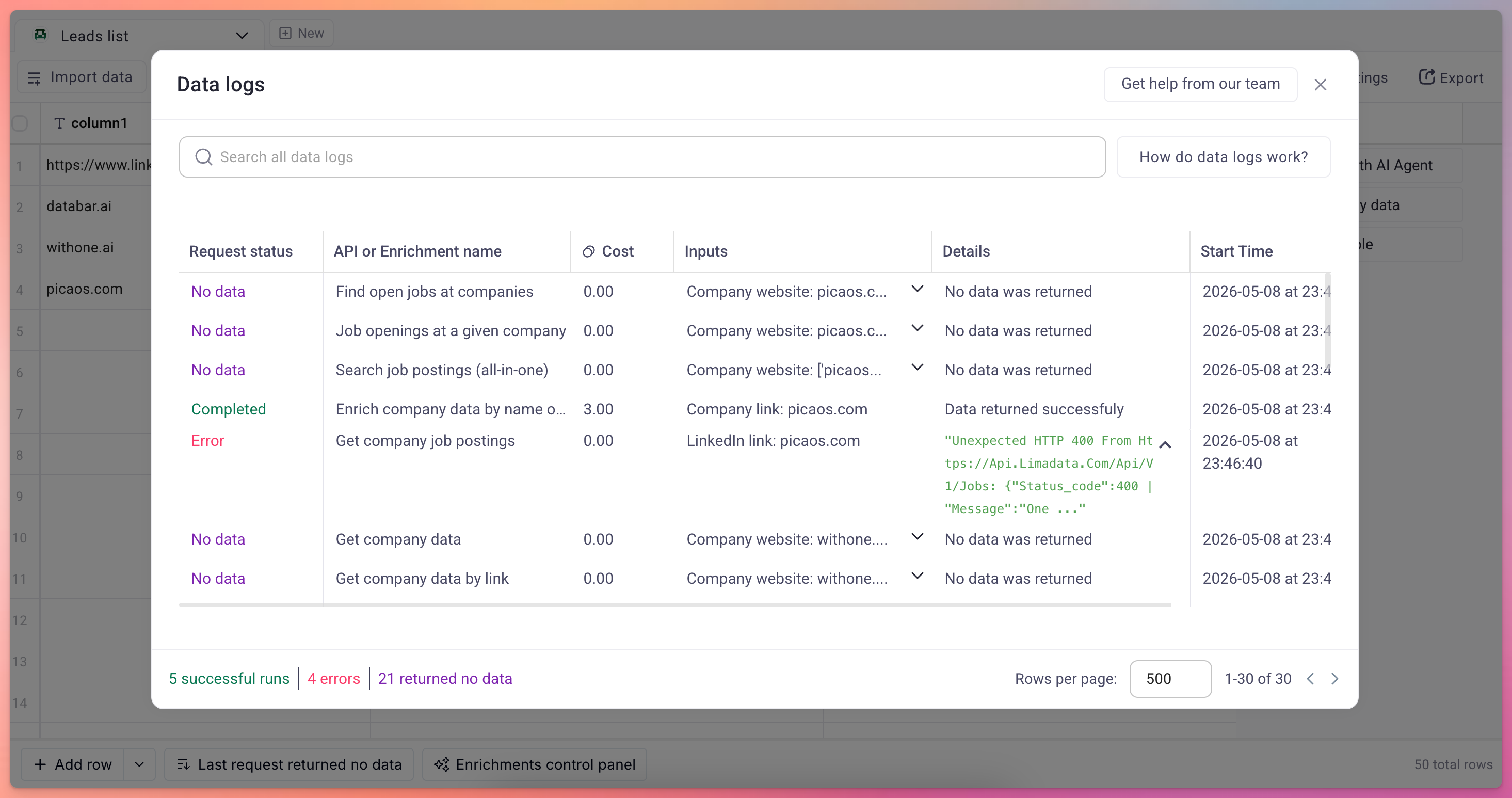
For deeper investigation, each table has a **Data logs** button located at the bottom of the table view, next to the **Add rows** button. Click it to open the log panel for that table.
Data was returned and written to the cell. No action needed.
The provider was reached successfully, but returned no matching result for the given input. This is not an error. The provider simply does not have information for that particular query. Try a different provider or verify your input values.
Something went wrong during the request. Hover over the triangle icon in the cell to see a tooltip with the error message and status code. Check the [data logs](#accessing-data-logs) for full details.
The enrichment is still running for this row. Wait for processing to complete.
The row did not satisfy the [run conditions](/product-guide/run-conditions) configured for this enrichment. The enrichment was skipped and no credits were consumed. Review your run condition expression if you expected this row to be processed.
One or more required input columns are empty for this row. The enrichment cannot run without the necessary input values. Fill in the missing data and re-run.
## Accessing data logs
For deeper investigation, each table has a **Data logs** button located at the bottom of the table view, next to the **Add rows** button. Click it to open the log panel for that table.
 ## Log columns
The data logs panel shows the following information for each request:
| Column | Description |
| ---------------- | ------------------------------------------------------------------------------------- |
| Status | Whether the request completed successfully, returned no data, or failed with an error |
| API / Enrichment | The name of the data provider or enrichment that was called |
| Cost | The number of credits or actions consumed by this request |
| Inputs | The values sent to the provider (e.g., email address, domain, company name) |
| Details | Full response payload or error message |
## Understanding request statuses
The request was successful and data was returned. The results have been written to the corresponding cells in your table.
The request reached the provider successfully, but no matching data was found for the given input. This is not an error. It simply means the provider does not have information for that particular query.
The request failed. Check the Details column for the specific error message and status code.
## Status codes reference
When a request fails, the status code helps identify the cause:
| Code | Meaning | What to do |
| ---- | ------------ | ---------------------------------------------------------------------------------------------------------------------------------------------------------- |
| 200 | OK | Request succeeded. If cells are still empty, the provider returned no matching data for your input. Try different input values. |
| 400 | Bad Request | One or more input parameters are invalid. Check that the correct columns are mapped and that values are in the expected format. |
| 401 | Unauthorized | The API key is invalid or expired. If using your own key via a connector, verify it in your workspace settings. If using the API Network, contact support. |
| 404 | Not Found | The requested endpoint or resource does not exist. This is typically a platform-side issue. Contact support at [info@databar.ai](mailto:info@databar.ai). |
## General troubleshooting tips
The most common cause of "no data" results is malformed or unexpected input values. Verify that the column mapped to the enrichment contains clean, correctly formatted data.
Open the data logs panel and filter by **Error** status to see all failed requests. The Details column usually contains enough information to identify the problem.
Before running an enrichment on your entire table, test it on a single row. This lets you verify the configuration without consuming credits on a large batch.
If using a connector with your own key, make sure the key is still valid and has sufficient quota on the provider's side.
If you receive persistent 404 errors or unexpected behavior that you cannot resolve, reach out to the Databar team at [info@databar.ai](mailto:info@databar.ai).
## Related
Learn how enrichments work
Configure conditional logic for enrichment runs
Understand request costs
## Log columns
The data logs panel shows the following information for each request:
| Column | Description |
| ---------------- | ------------------------------------------------------------------------------------- |
| Status | Whether the request completed successfully, returned no data, or failed with an error |
| API / Enrichment | The name of the data provider or enrichment that was called |
| Cost | The number of credits or actions consumed by this request |
| Inputs | The values sent to the provider (e.g., email address, domain, company name) |
| Details | Full response payload or error message |
## Understanding request statuses
The request was successful and data was returned. The results have been written to the corresponding cells in your table.
The request reached the provider successfully, but no matching data was found for the given input. This is not an error. It simply means the provider does not have information for that particular query.
The request failed. Check the Details column for the specific error message and status code.
## Status codes reference
When a request fails, the status code helps identify the cause:
| Code | Meaning | What to do |
| ---- | ------------ | ---------------------------------------------------------------------------------------------------------------------------------------------------------- |
| 200 | OK | Request succeeded. If cells are still empty, the provider returned no matching data for your input. Try different input values. |
| 400 | Bad Request | One or more input parameters are invalid. Check that the correct columns are mapped and that values are in the expected format. |
| 401 | Unauthorized | The API key is invalid or expired. If using your own key via a connector, verify it in your workspace settings. If using the API Network, contact support. |
| 404 | Not Found | The requested endpoint or resource does not exist. This is typically a platform-side issue. Contact support at [info@databar.ai](mailto:info@databar.ai). |
## General troubleshooting tips
The most common cause of "no data" results is malformed or unexpected input values. Verify that the column mapped to the enrichment contains clean, correctly formatted data.
Open the data logs panel and filter by **Error** status to see all failed requests. The Details column usually contains enough information to identify the problem.
Before running an enrichment on your entire table, test it on a single row. This lets you verify the configuration without consuming credits on a large batch.
If using a connector with your own key, make sure the key is still valid and has sufficient quota on the provider's side.
If you receive persistent 404 errors or unexpected behavior that you cannot resolve, reach out to the Databar team at [info@databar.ai](mailto:info@databar.ai).
## Related
Learn how enrichments work
Configure conditional logic for enrichment runs
Understand request costs