> ## Documentation Index
> Fetch the complete documentation index at: https://docs.databar.ai/llms.txt
> Use this file to discover all available pages before exploring further.
# HubSpot
> Connect HubSpot to Databar to import, enrich and update your contacts and companies.
Databar connects your HubSpot account to 100+ data providers, waterfall enrichment and AI web research. With the integration you can:
* Import your HubSpot contacts and companies into a Databar table: everything, or a filtered slice.
* Enrich them with verified work emails, phone numbers, firmographics, tech stack, funding data and more.
* Write the enriched data back to HubSpot, updating existing records or creating new ones.
## Before you start
* **A Databar account.** Sign up at [databar.ai](https://databar.ai). Every workspace starts with a 14-day free trial and no credit card required. Paid plans start at \$99/month.
* **A HubSpot account with permission to connect apps.** If your HubSpot account uses app approval controls, a HubSpot Super Admin may need to approve Databar first (see [Troubleshooting](#troubleshooting)).
## 1. Install and connect HubSpot
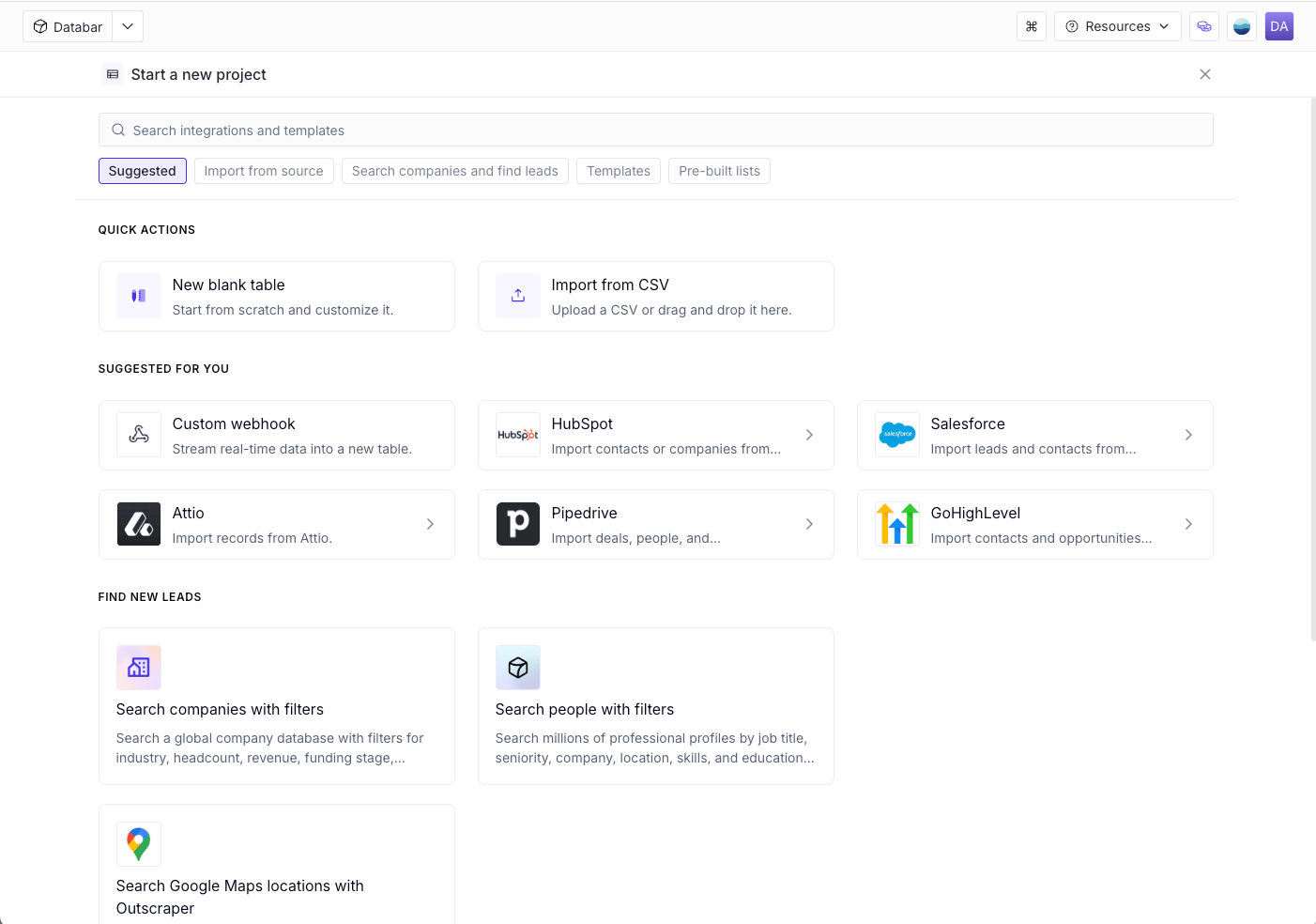
Log in to Databar and click **Start a new project**. Under **Suggested for you**, select **HubSpot**.
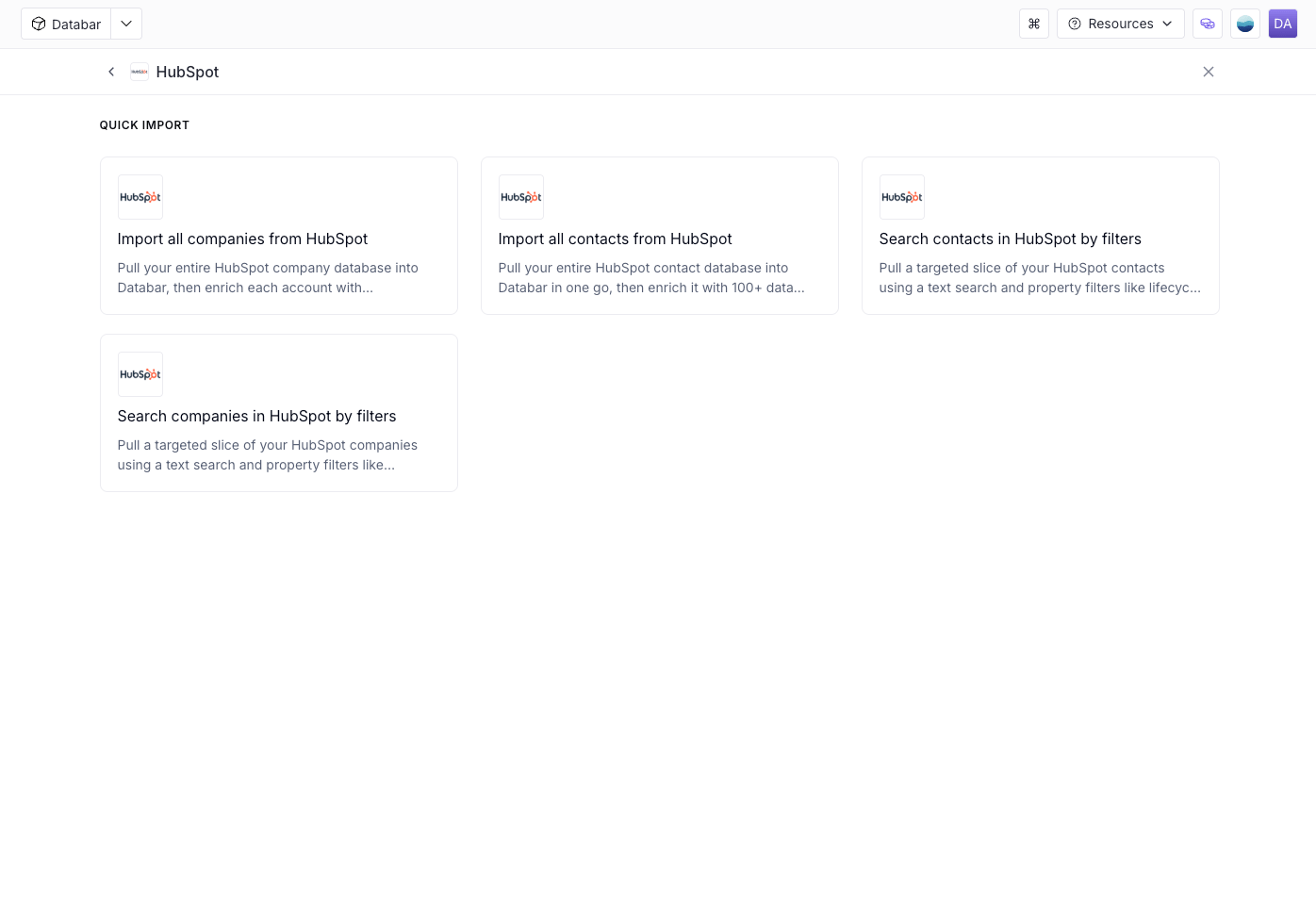
 * **Import all companies from HubSpot**: your full company database.
* **Import all contacts from HubSpot**: your full contact database.
* **Search contacts in HubSpot by filters**: a targeted slice of contacts, using a text search and property filters such as lifecycle stage or job title.
* **Search companies in HubSpot by filters**: a targeted slice of companies, using filters such as industry, country or employee count.
* **Import all companies from HubSpot**: your full company database.
* **Import all contacts from HubSpot**: your full contact database.
* **Search contacts in HubSpot by filters**: a targeted slice of contacts, using a text search and property filters such as lifecycle stage or job title.
* **Search companies in HubSpot by filters**: a targeted slice of companies, using filters such as industry, country or employee count.
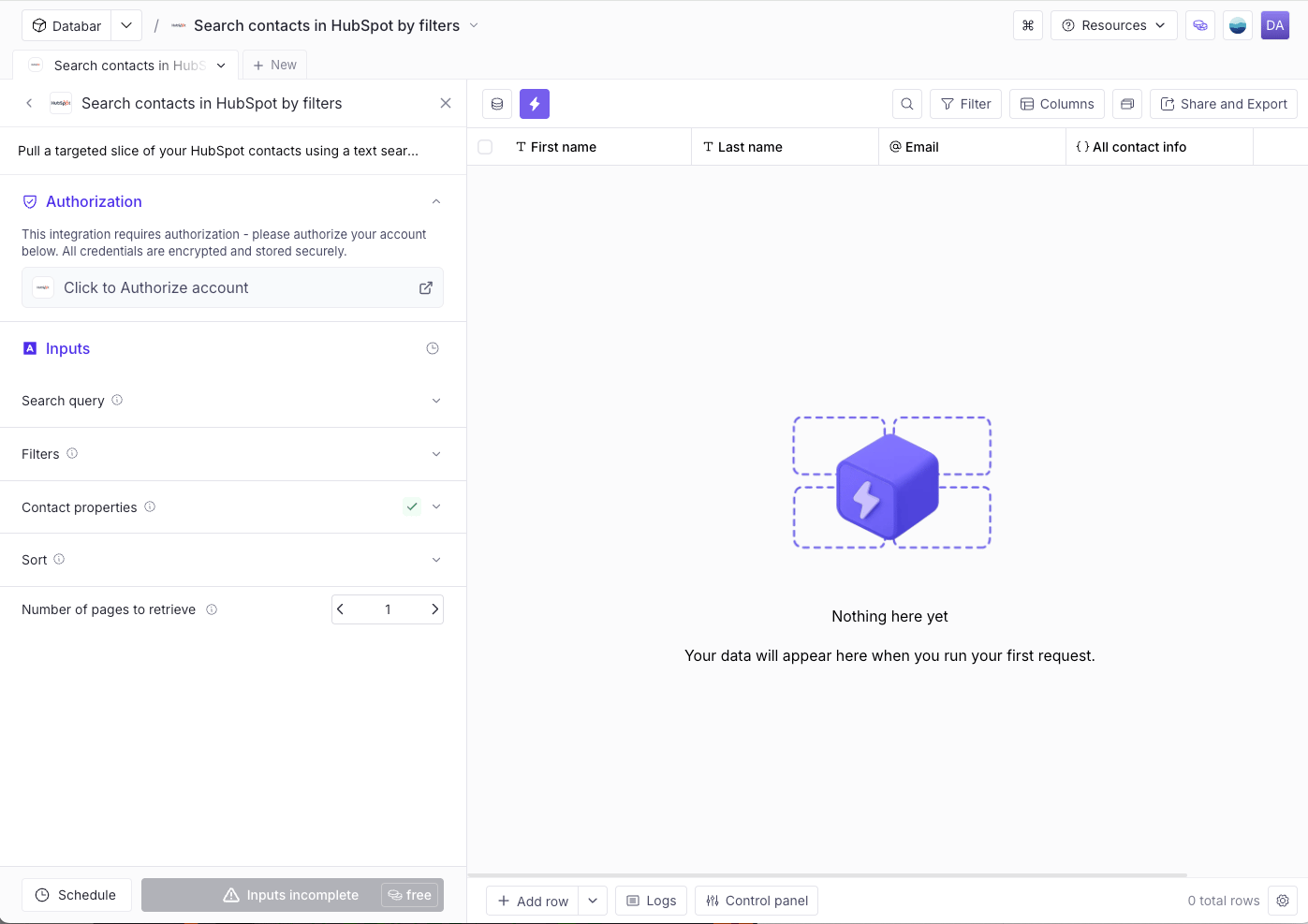
 In the left panel, under **Authorization**, click **Click to Authorize account**. A HubSpot window opens.
 Select the HubSpot account you want to connect, then click **Choose Account**.
Review the permissions Databar requests (see [Permissions Databar requests](#permissions-databar-requests)), then click **Connect app**.
You're sent back to Databar, and the Authorization panel shows **Authorized on HubSpot**. You only need to connect once per workspace. Every HubSpot import and export in the workspace uses this connection.
### Permissions Databar requests
On HubSpot's consent screen, Databar requests these permissions. We use each one only for the purpose listed, and only when you run an import or export yourself.
| HubSpot permission (scope) | What it lets Databar do | Why we need it |
| - | - | - |
| `crm.objects.contacts.read` | View contacts and their properties | Import your contacts into a Databar table, and look up existing contacts by ID or email |
| `crm.objects.contacts.write` | Create and update contacts | Write enriched fields back to HubSpot, and create new contacts from lists you build in Databar (matched by email, so no duplicates) |
| `crm.objects.companies.read` | View companies and their properties | Import your companies, and look up existing companies by ID or website |
| `crm.objects.companies.write` | Create and update companies | Write enriched company data back to HubSpot, and create new companies |
HubSpot also adds its standard `oauth` permission to every connected app.
Databar does not access HubSpot in the background. It only reads or writes data when you run an import, enrichment or export you've set up, or on a schedule you've created.
## 2. Import your records
1. Under **Inputs**, set up what to import. For the search options you can add a **Search query**, **Filters**, which **Contact properties** or **Company properties** to bring in, and a **Sort** order. Set **Number of pages to retrieve** to control how many records come in.
2. Click **Run query**. Your records appear in the table, with the properties you selected as columns.
Select the HubSpot account you want to connect, then click **Choose Account**.
Review the permissions Databar requests (see [Permissions Databar requests](#permissions-databar-requests)), then click **Connect app**.
You're sent back to Databar, and the Authorization panel shows **Authorized on HubSpot**. You only need to connect once per workspace. Every HubSpot import and export in the workspace uses this connection.
### Permissions Databar requests
On HubSpot's consent screen, Databar requests these permissions. We use each one only for the purpose listed, and only when you run an import or export yourself.
| HubSpot permission (scope) | What it lets Databar do | Why we need it |
| - | - | - |
| `crm.objects.contacts.read` | View contacts and their properties | Import your contacts into a Databar table, and look up existing contacts by ID or email |
| `crm.objects.contacts.write` | Create and update contacts | Write enriched fields back to HubSpot, and create new contacts from lists you build in Databar (matched by email, so no duplicates) |
| `crm.objects.companies.read` | View companies and their properties | Import your companies, and look up existing companies by ID or website |
| `crm.objects.companies.write` | Create and update companies | Write enriched company data back to HubSpot, and create new companies |
HubSpot also adds its standard `oauth` permission to every connected app.
Databar does not access HubSpot in the background. It only reads or writes data when you run an import, enrichment or export you've set up, or on a schedule you've created.
## 2. Import your records
1. Under **Inputs**, set up what to import. For the search options you can add a **Search query**, **Filters**, which **Contact properties** or **Company properties** to bring in, and a **Sort** order. Set **Number of pages to retrieve** to control how many records come in.
2. Click **Run query**. Your records appear in the table, with the properties you selected as columns.
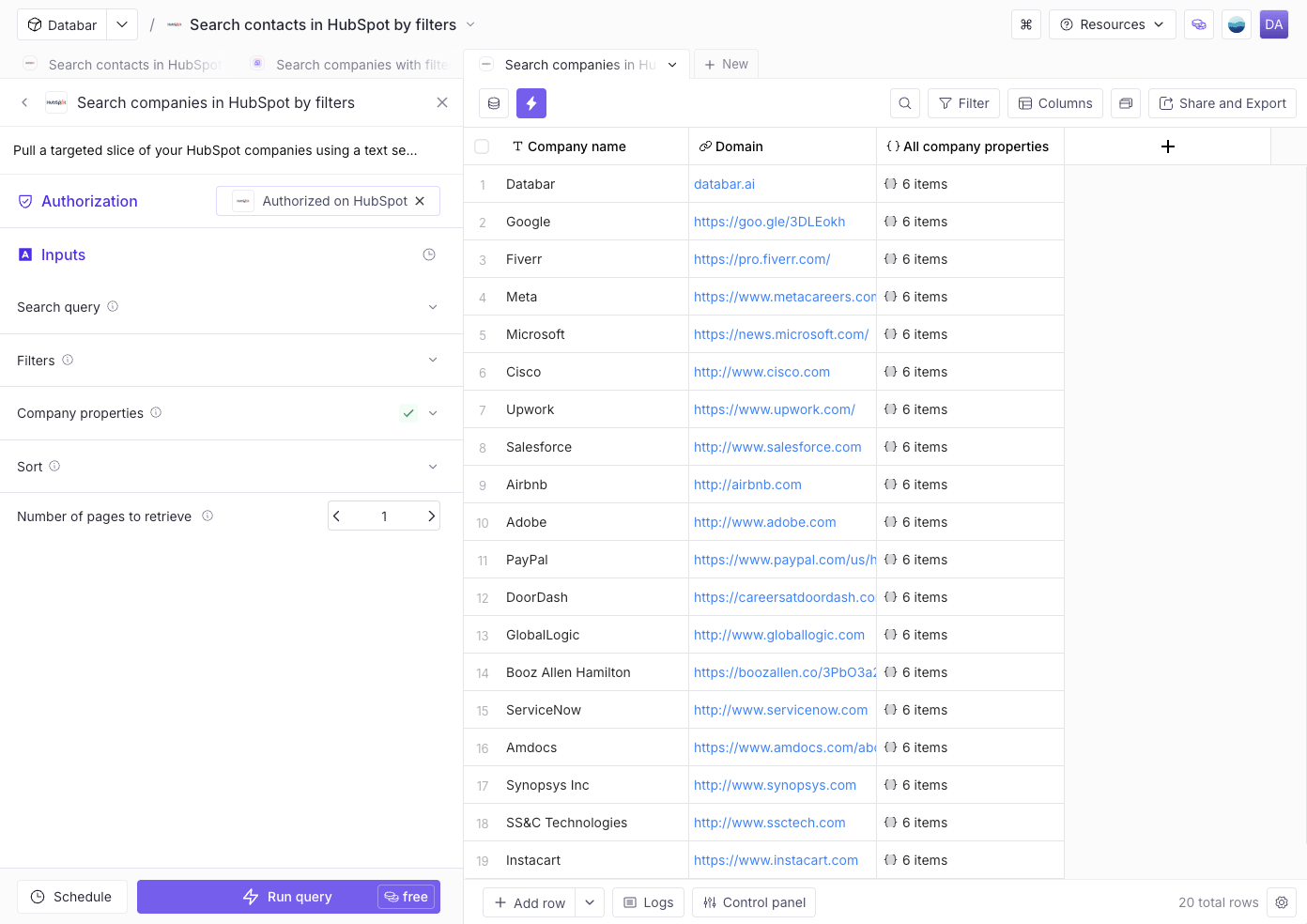 3. Optional: click **Schedule** to re-run the import automatically and keep the table in sync with HubSpot.
## 3. Enrich your records
1. Click **+** at the end of the column headers to add an enrichment column.
2. Search for what you need, for example a work email, phone number, company headcount, tech stack or funding data. Use a [waterfall](/product-guide/waterfalls) to try several providers in turn until one returns a result.
3. Map the enrichment's inputs to your columns (for example, map **Domain** to the company website input), then run it on the rows you want.
You're only charged credits for results returned. Lookups that find no data are free.
## 4. Send enriched data back to HubSpot
1. In the table toolbar, click **Share and Export**.
2. Under **Stream to your CRM**, choose HubSpot, then pick an action:
* **Create or update HubSpot contacts**: updates matching contacts and creates new ones when no match is found.
* **Create or update HubSpot company records**: updates matching companies and creates new ones when no match is found.
3. Map your Databar columns to HubSpot properties. Only the fields you map are written.
4. Run the export. The updated records appear in HubSpot within a few seconds.
Review your column mapping before running an export, so you don't overwrite HubSpot data you want to keep.
## Disconnect HubSpot from Databar
1. Open any table that uses a HubSpot import, and find **Authorization** in the left panel.
2. Click the **x** on **Authorized on HubSpot**, then confirm **Remove credentials**.
What happens when you disconnect:
* Databar stops all access to your HubSpot account. Imports, exports and schedules that use HubSpot stop working until you reconnect.
* Data you've already imported stays in your Databar tables until you delete it.
* Nothing in HubSpot is changed or deleted.
## Uninstall Databar from HubSpot
1. In HubSpot, click the **settings** icon in the top navigation bar.
2. In the left sidebar, go to **Integrations** > **Connected apps**.
3. Find **Databar**, click **Actions** > **Uninstall**, and confirm.
What happens when you uninstall:
* Databar's access token is revoked immediately, and Databar can no longer read or write any HubSpot data.
* Records Databar created or updated in HubSpot stay in HubSpot.
* Data already imported into Databar stays in your Databar workspace until you delete it.
## Troubleshooting
The full message reads: "Authorization failed because this app hasn't been approved to access the required scopes".
Your HubSpot account uses app approval controls, and Databar's permissions haven't been approved yet. Ask a HubSpot Super Admin to approve Databar under **Settings** > **Integrations** > **Connected apps** > **Approved apps** > **Approve apps**, or to connect Databar themselves. Then try again.
Check your search query and filters, and that the connected HubSpot user can see those records.
## Support
Email [info@databar.ai](mailto:info@databar.ai) or use the chat in the Databar app.
This documentation is built and hosted on [Mintlify](https://mintlify.com), a developer documentation platform.
3. Optional: click **Schedule** to re-run the import automatically and keep the table in sync with HubSpot.
## 3. Enrich your records
1. Click **+** at the end of the column headers to add an enrichment column.
2. Search for what you need, for example a work email, phone number, company headcount, tech stack or funding data. Use a [waterfall](/product-guide/waterfalls) to try several providers in turn until one returns a result.
3. Map the enrichment's inputs to your columns (for example, map **Domain** to the company website input), then run it on the rows you want.
You're only charged credits for results returned. Lookups that find no data are free.
## 4. Send enriched data back to HubSpot
1. In the table toolbar, click **Share and Export**.
2. Under **Stream to your CRM**, choose HubSpot, then pick an action:
* **Create or update HubSpot contacts**: updates matching contacts and creates new ones when no match is found.
* **Create or update HubSpot company records**: updates matching companies and creates new ones when no match is found.
3. Map your Databar columns to HubSpot properties. Only the fields you map are written.
4. Run the export. The updated records appear in HubSpot within a few seconds.
Review your column mapping before running an export, so you don't overwrite HubSpot data you want to keep.
## Disconnect HubSpot from Databar
1. Open any table that uses a HubSpot import, and find **Authorization** in the left panel.
2. Click the **x** on **Authorized on HubSpot**, then confirm **Remove credentials**.
What happens when you disconnect:
* Databar stops all access to your HubSpot account. Imports, exports and schedules that use HubSpot stop working until you reconnect.
* Data you've already imported stays in your Databar tables until you delete it.
* Nothing in HubSpot is changed or deleted.
## Uninstall Databar from HubSpot
1. In HubSpot, click the **settings** icon in the top navigation bar.
2. In the left sidebar, go to **Integrations** > **Connected apps**.
3. Find **Databar**, click **Actions** > **Uninstall**, and confirm.
What happens when you uninstall:
* Databar's access token is revoked immediately, and Databar can no longer read or write any HubSpot data.
* Records Databar created or updated in HubSpot stay in HubSpot.
* Data already imported into Databar stays in your Databar workspace until you delete it.
## Troubleshooting
The full message reads: "Authorization failed because this app hasn't been approved to access the required scopes".
Your HubSpot account uses app approval controls, and Databar's permissions haven't been approved yet. Ask a HubSpot Super Admin to approve Databar under **Settings** > **Integrations** > **Connected apps** > **Approved apps** > **Approve apps**, or to connect Databar themselves. Then try again.
Check your search query and filters, and that the connected HubSpot user can see those records.
## Support
Email [info@databar.ai](mailto:info@databar.ai) or use the chat in the Databar app.
This documentation is built and hosted on [Mintlify](https://mintlify.com), a developer documentation platform.