> ## Documentation Index
> Fetch the complete documentation index at: https://docs.databar.ai/llms.txt
> Use this file to discover all available pages before exploring further.
# Tables
> How to create, configure, and work with tables in Databar.
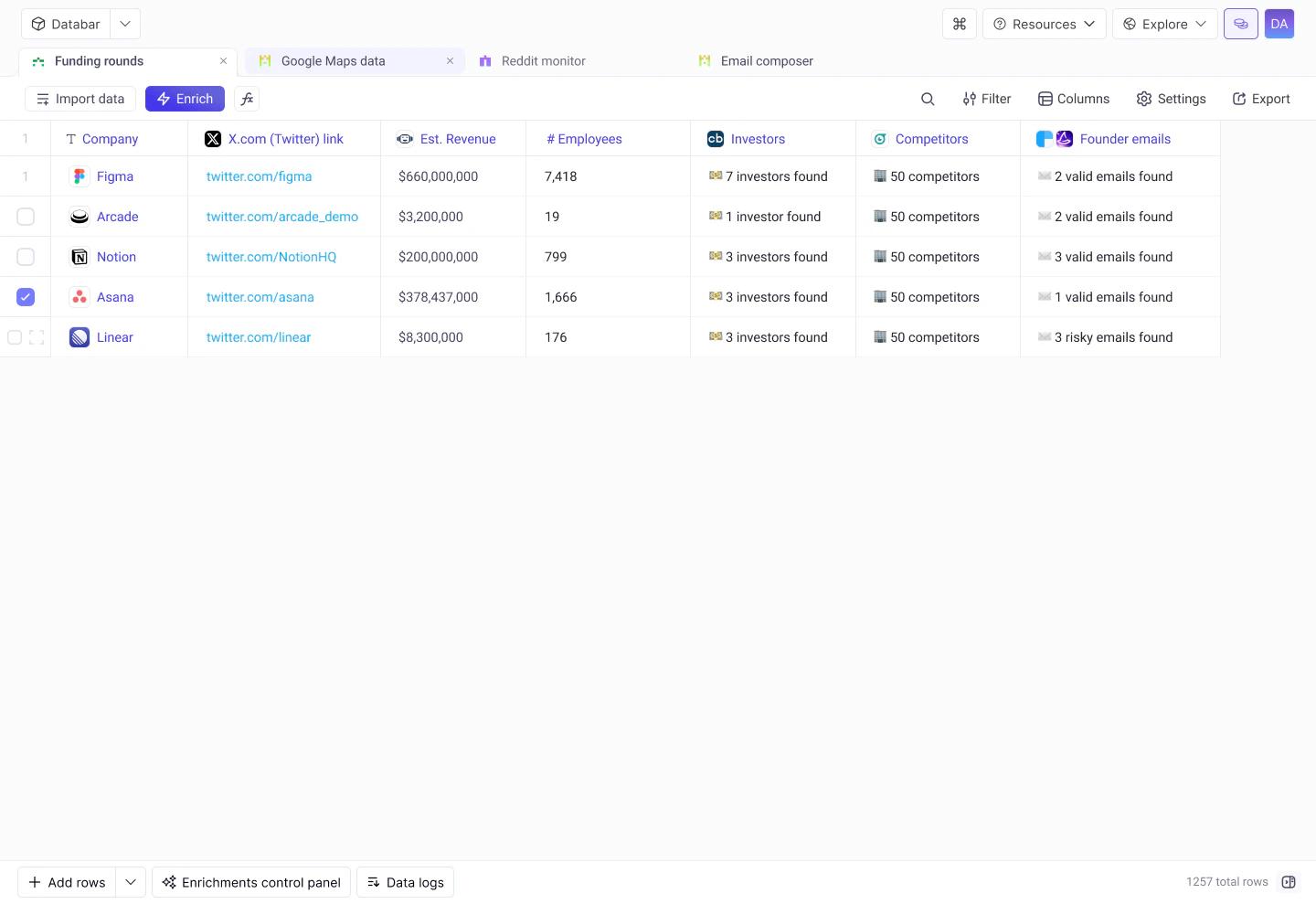
Tables are the core data structure in Databar. Each table is a collection of rows and columns where you store, enrich, and transform your data. Tables support **unlimited rows**, infinite scroll, cell-level enrichment tracking, and flexible column types.
There is no row limit on Databar tables. You can store and enrich as many rows as you need, with no caps or restrictions on table size.
## Creating tables
You can create a new table in several ways:
Click **New table** from your workspace home to start with an empty table. Add columns and rows manually, or attach enrichments to populate data automatically.
Import a CSV file to create a table pre-populated with your existing data. Column types are inferred automatically. Free plans support CSV uploads up to 5 MB, while higher plans support up to 200 MB per upload.
Connect to CRMs, outbound tools, analytics platforms, and list-builders to pull data directly into a new table. See [Import data](/product-guide/import-data) for details.
Generate a webhook URL for your table and send data to it from any external system. Each incoming payload creates new rows automatically. See [Webhooks](/product-guide/webhooks) for setup details.
You can also create tables programmatically via the [Tables API](/api-reference/endpoint/tables-create).
## Columns
Add columns by clicking the **+** button at the end of the header row. Click any column header to rename, delete, change type, or sort. Enrichment columns are created automatically and grouped under collapsible headers.
Databar supports 11 column types including Text, Number, Currency, Boolean/Checkbox, Date, Datetime, URL, Image, JSON, Select, and Multiple choice.
Learn about column types, management, and grouping
## Rows
### Adding rows
* **Single row**: click **Add row** at the bottom of the table.
* **Bulk add**: paste multiple values or use an importer to add hundreds or thousands of rows at once.
* **Programmatic**: use the [Tables API](/api-reference/endpoint/tables-insert-rows) to insert rows from scripts or automations.
### Editing cells
Click any cell to edit its value directly. For JSON columns, use the expanded editor for easier navigation of nested structures. You can also use the [JSON Expander](/product-guide/json-expander) to flatten nested fields into their own columns.
### Row detail view
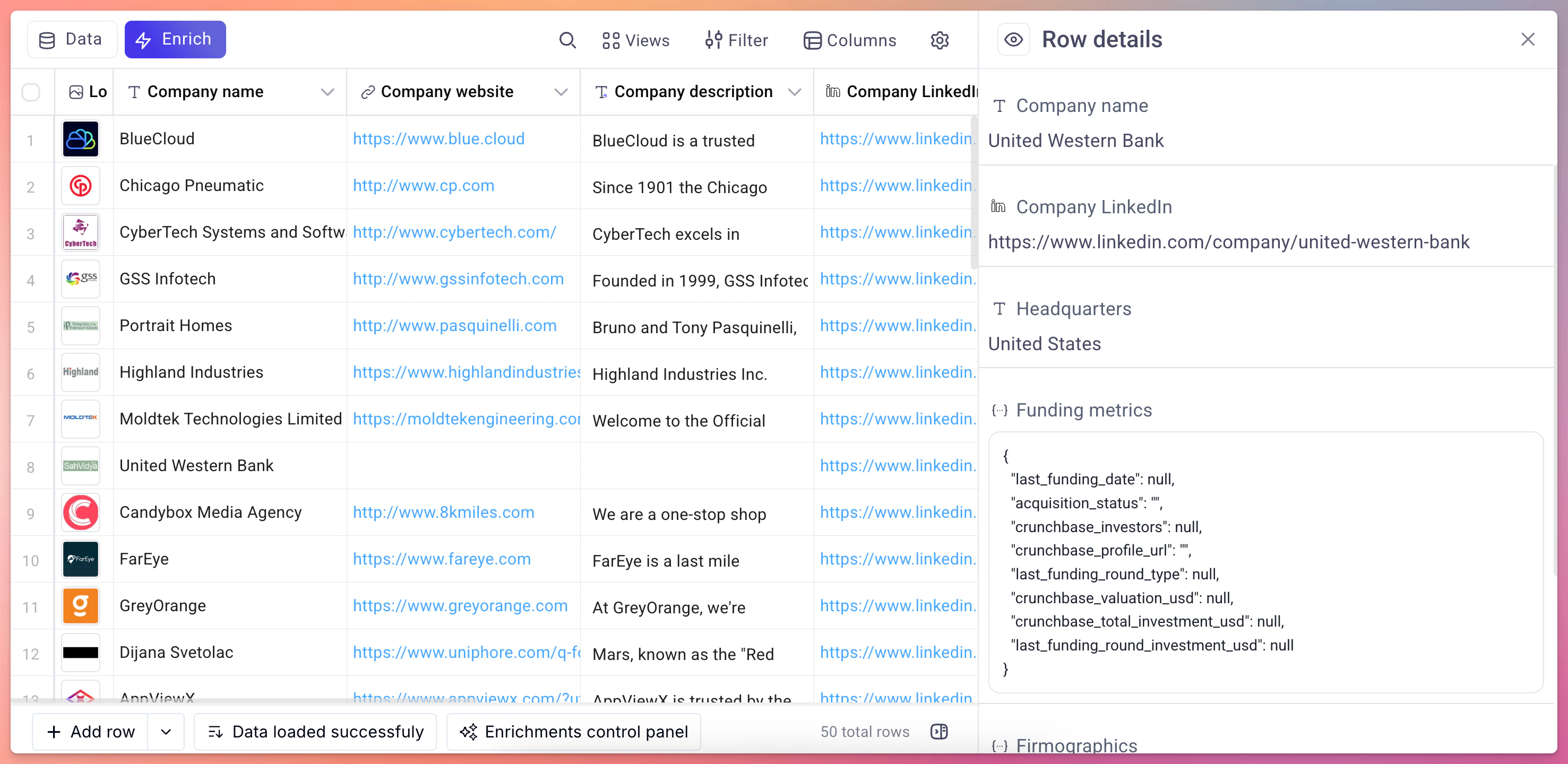
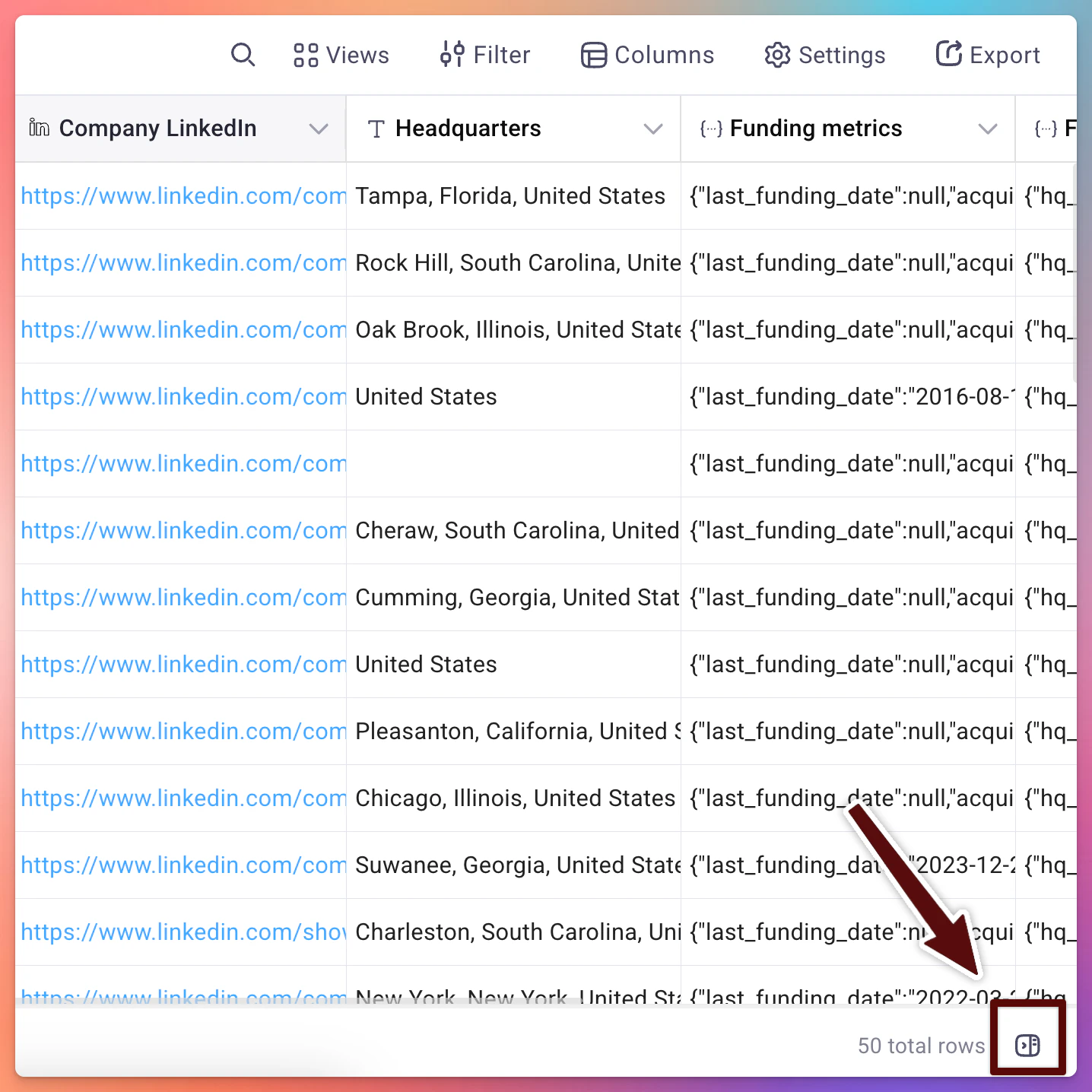
Click the expand icon on any row to open the sidebar detail view. This shows all column values for that row in a vertical layout, making it easier to inspect complex or wide tables.
### Infinite scroll
Tables load rows progressively as you scroll. There is no pagination. Just keep scrolling to see more data, even for tables with tens of thousands of rows.
## Cell-level enrichment statuses
Each cell populated by an enrichment displays a status indicator (success, no data, error, loading, run conditions not met, or inputs missing) so you can spot issues at a glance. Hover over any error icon to see the details inline.
Full reference for all cell statuses, data logs, status codes, and troubleshooting steps
## Filtering and sorting
* **Sort**: click any column header to sort ascending or descending.
* **Filter**: use the filter bar above the table to show only rows matching specific conditions (e.g., "Status equals Error" or "Email is not empty").
Filters and sorts can be combined and are applied client-side for instant feedback.
## Data formatting
Databar automatically handles common formatting needs:
* **UNIX timestamps** are converted to human-readable dates.
* **Booleans** display as checkmarks or crosses.
* **Image URLs** render inline previews.
* **Long text** is truncated in the cell with full content visible in the detail view.
## Working with JSON columns
Many API providers return nested JSON objects. Databar provides a **JSON expander** that lets you flatten specific fields from a JSON column into their own top-level columns. This makes it easy to extract exactly the data you need without manual parsing. See the [JSON Expander](/product-guide/json-expander) page for details.
## Next steps
Attach data providers to your table columns
Bring data in from external sources
Troubleshoot enrichment errors
Create and manage tables programmatically
 ## Creating tables
You can create a new table in several ways:
## Creating tables
You can create a new table in several ways: