

 MCP Server
Why add custom APIs
Custom APIs are useful when:- The integration you need isn’t in Databar’s library: connect any public REST API yourself instead of waiting for official support.
- You have internal or private APIs: pull data from internal services that aren’t publicly available.
- You want to connect to your CRM or internal systems: push enriched data directly to the tools your team already uses.
- You need custom exporters: send table data to any endpoint that accepts HTTP requests.
Two types of custom APIs
Databar supports two categories of custom connectors:How to add a custom API
1
Open Integrations
Go to your workspace home and click Integrations.
2
Start a new connection
Click Connect a custom API.
3
Fill in the API details
Enter the endpoint URL, select the HTTP method, configure authentication, and define request parameters.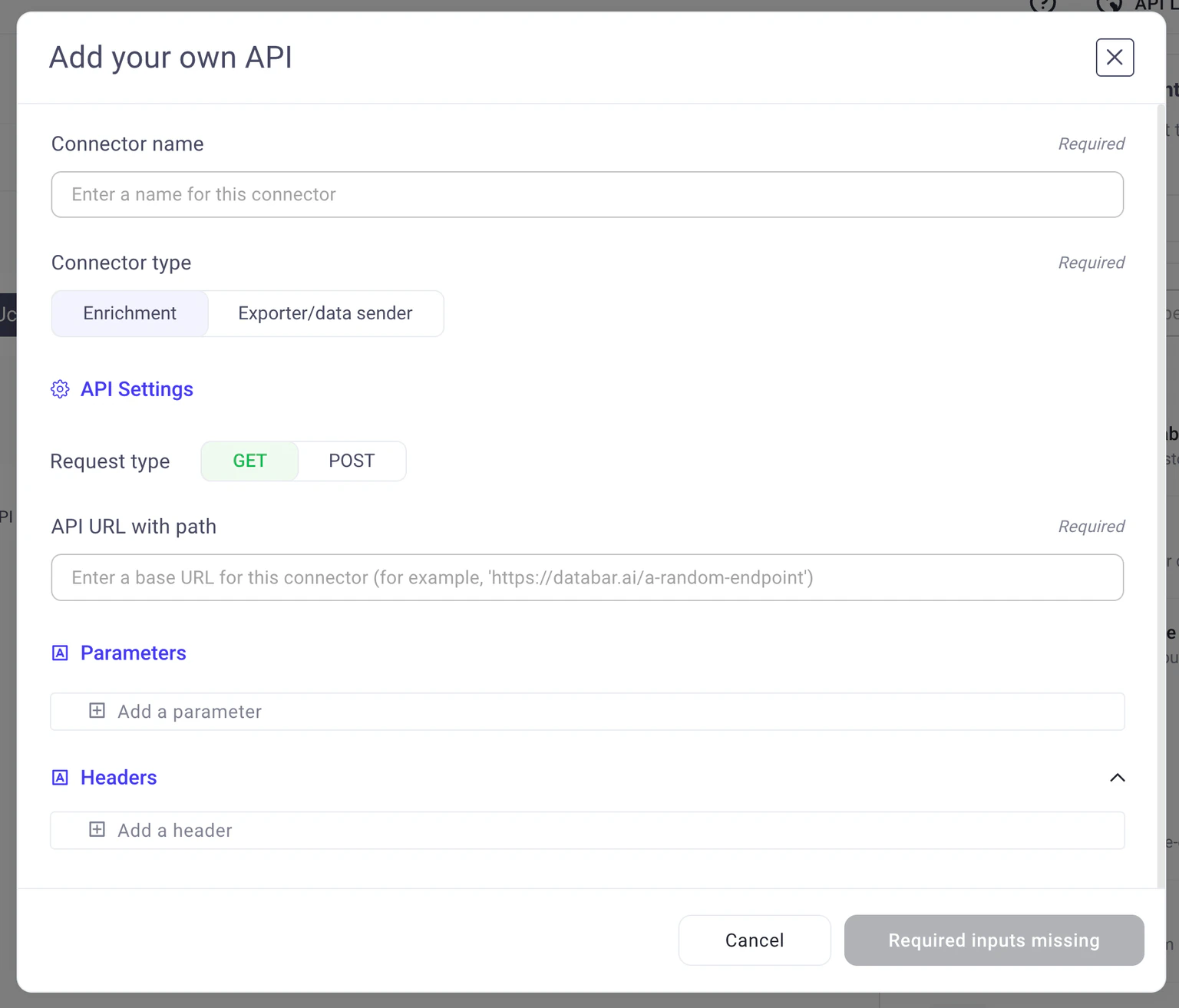
4
Save the connector
Click Save. Your custom API is now available in the enrichment or exporter catalog depending on how you configured it.For custom enrichments, you’ll find it under Add or use your own REST API in the Enrich sidebar.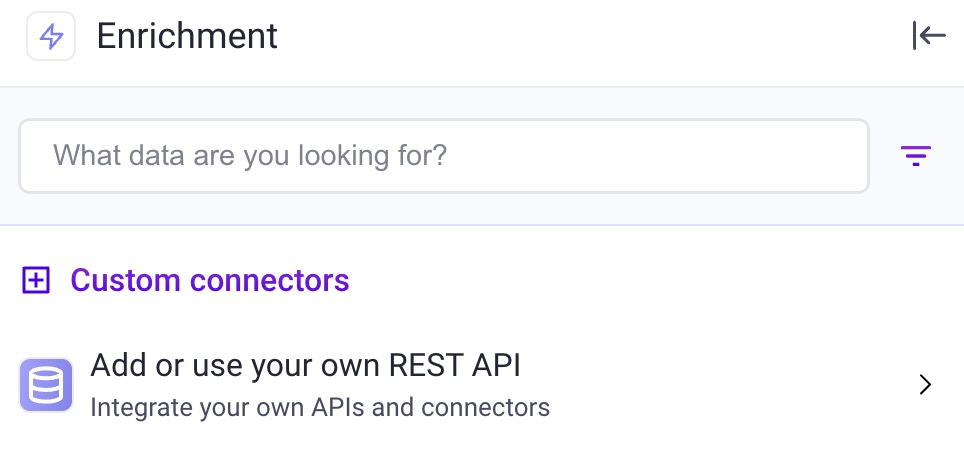
5
Set up column mapping
Add the custom API to a table just like any other enrichment or exporter. Map your table columns to the API’s request parameters.
6
Install and run
Click Add Columns (for enrichments) or configure your export, then hit Run.
Supported HTTP methods
Custom APIs support the following HTTP methods:- GET: retrieve data from the endpoint
- POST: send data in the request body
- PATCH: partially update a resource
- PUT: replace a resource entirely
Advanced settings
Override content-type parameters
You can override API-specific text, like content-types, by simply adding them as a parameter. For example, if you want to override theContent-Type parameter and send:
Custom body templates
For APIs that require a specific request body structure, click Use a custom template under Body parameters. Use dollar signs around parameter names to insert dynamic values from your table columns:$email$ and $full_name$ are replaced with the corresponding column values for each row.
Rate limit and concurrency controls
Rate limit and concurrency controls are available on Scale+ plans.
Plan availability
Custom API access depends on your Databar plan. Check your workspace settings or visit databar.ai/pricing for details.Next steps
Authorization & API keys
Learn how authentication works for data providers.
Enrichments
See how enrichments work with your tables.
Credits & billing
Understand how custom API usage is billed.